
Text and WhatsApp Alert Setup
RackNet can send alerts as text messages, by SMS or WhatsApp. To enable notifications:
- Log in to RackNet
- Click the “account” link in the upper left corner, next to your name
- Check the “Enable SMS Notifications” or “Enable WhatsApp Notifications” box
- Enter your area code and phone number (just the numbers), then verify
- Enter the verification code you should have received on your phone
- Done.
You will receive a message with the RackNet contact information after verifying your number. Touch it and then choose “Create New Contact” so messages will always show up as coming from RackNet.
The four screens below are what you will see at each step, in order. They show the SMS text notification flow. WhatsApp is enabled the same way.
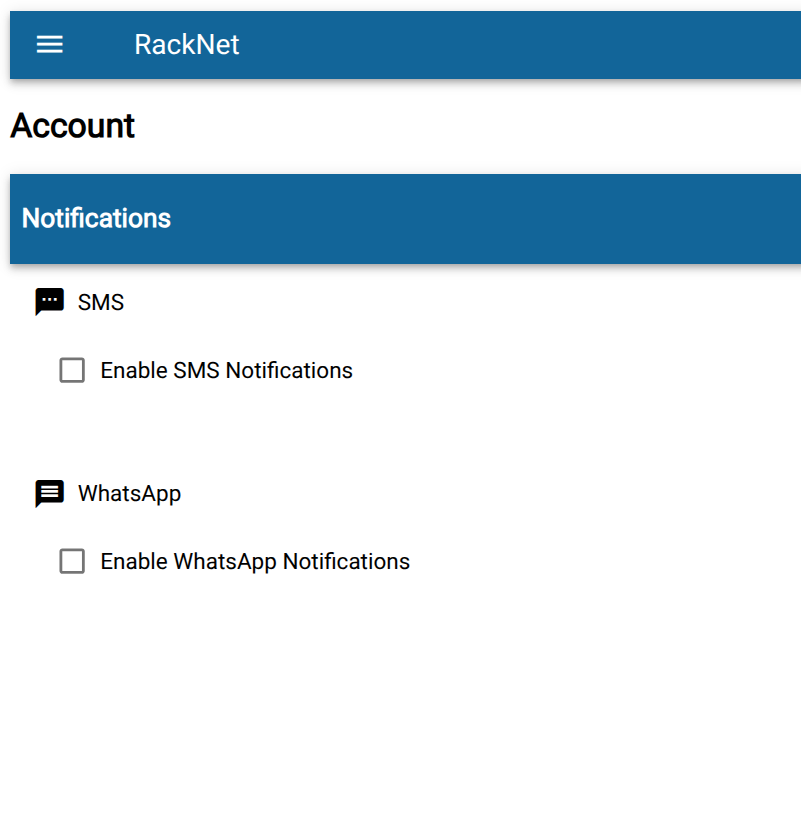
1 · Disabled
Section titled “1 · Disabled”Initially all notifications are disabled.
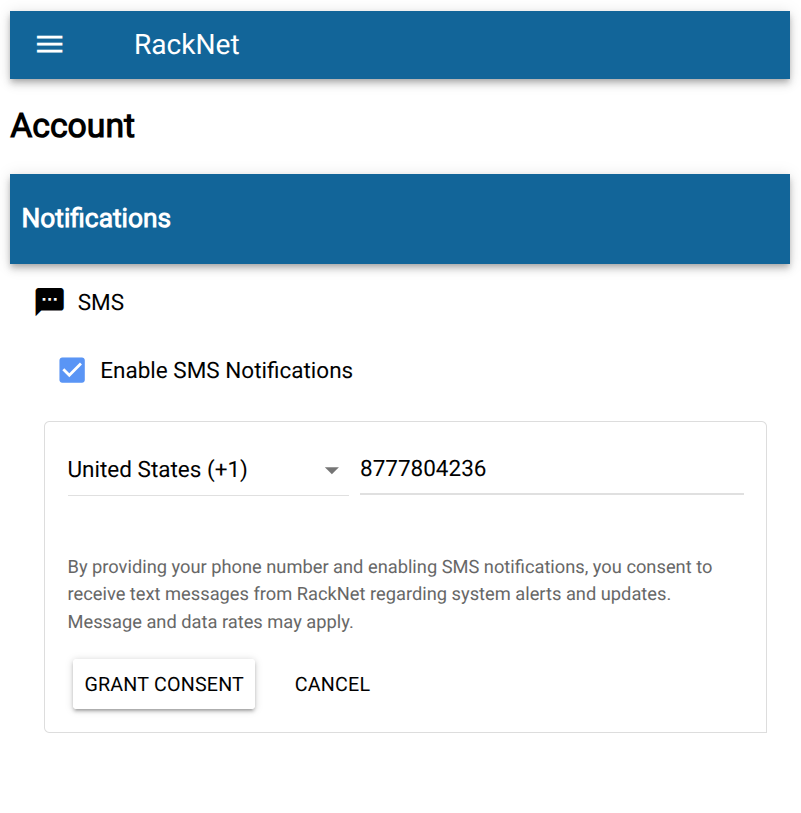
2 · Grant consent
Section titled “2 · Grant consent”Grant consent to receive messages. Standard message and data rates apply, and you can turn alerts off again at any time.
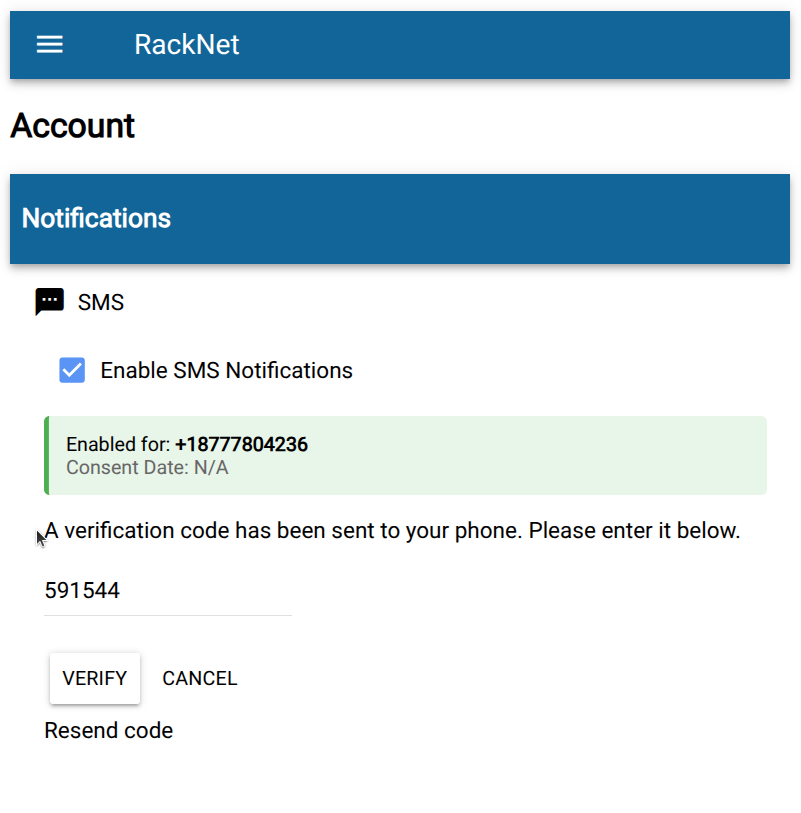
3 · Verify the code
Section titled “3 · Verify the code”Enter the verification code sent to your phone or device. Confirmation is necessary before notifications can be sent.
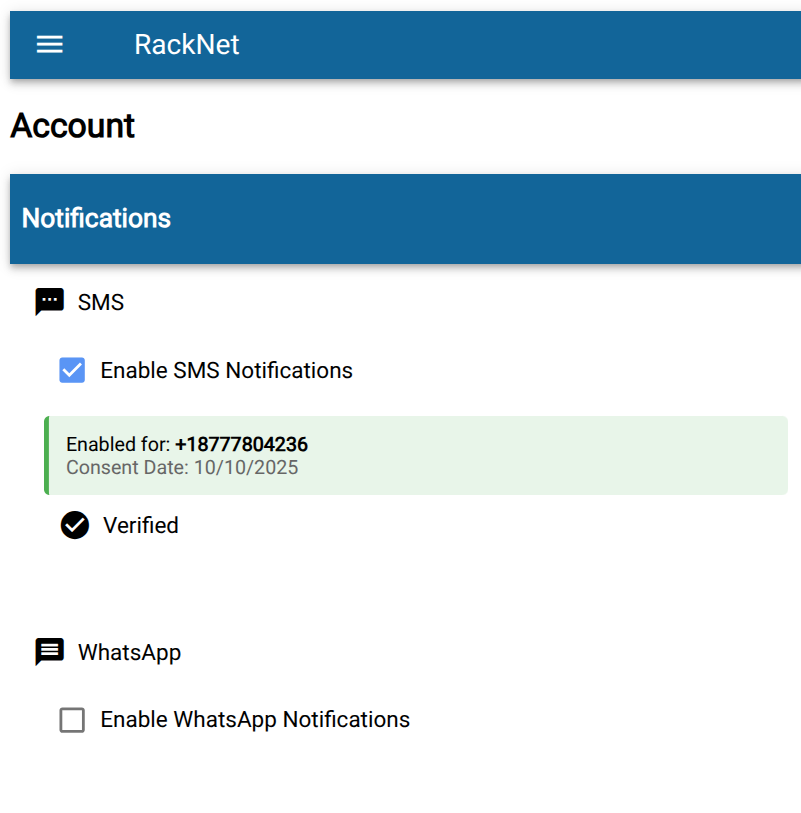
4 · Enabled
Section titled “4 · Enabled”Alerts are now on. New alerts from RackNet will be sent as text messages as well as email.
Last reviewed 2026-10-18.